Usage
Tracking
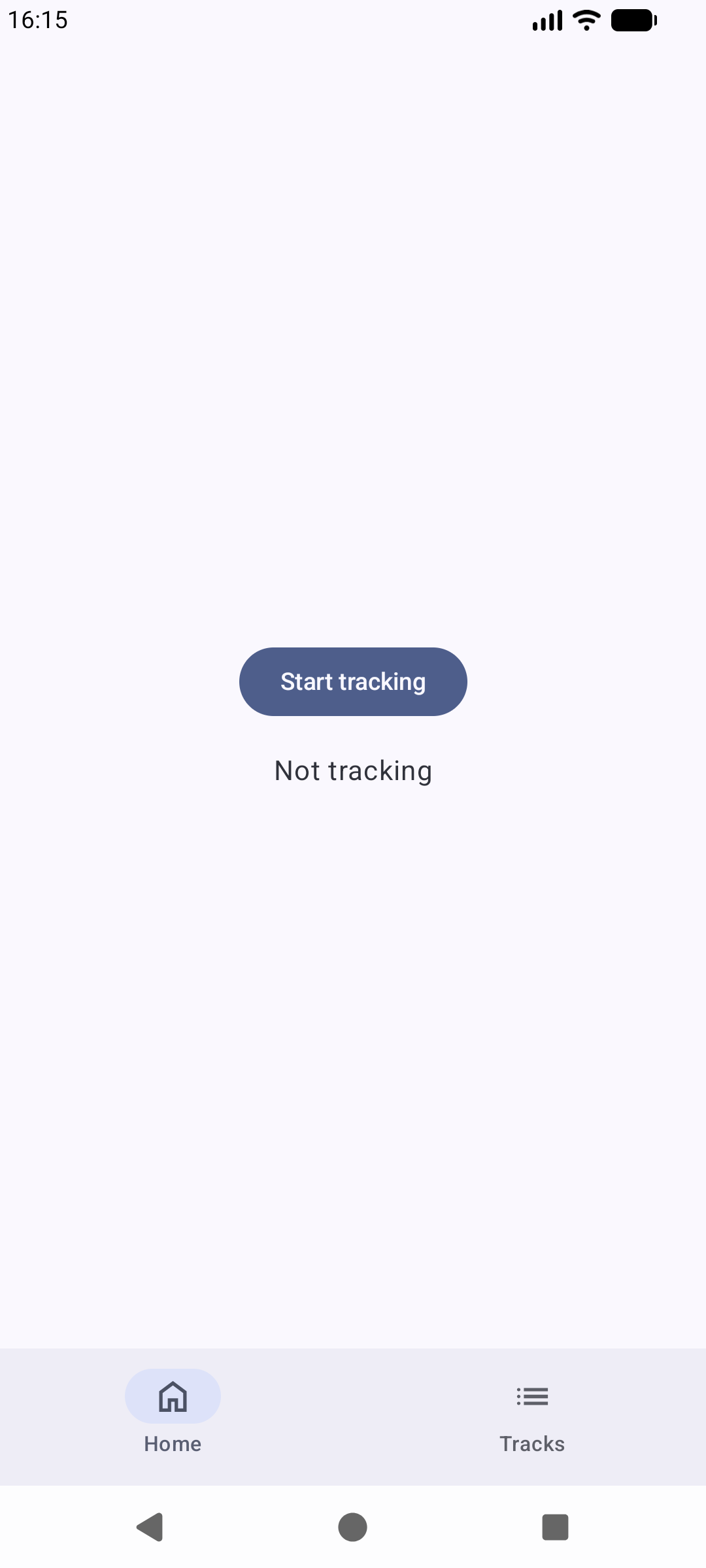
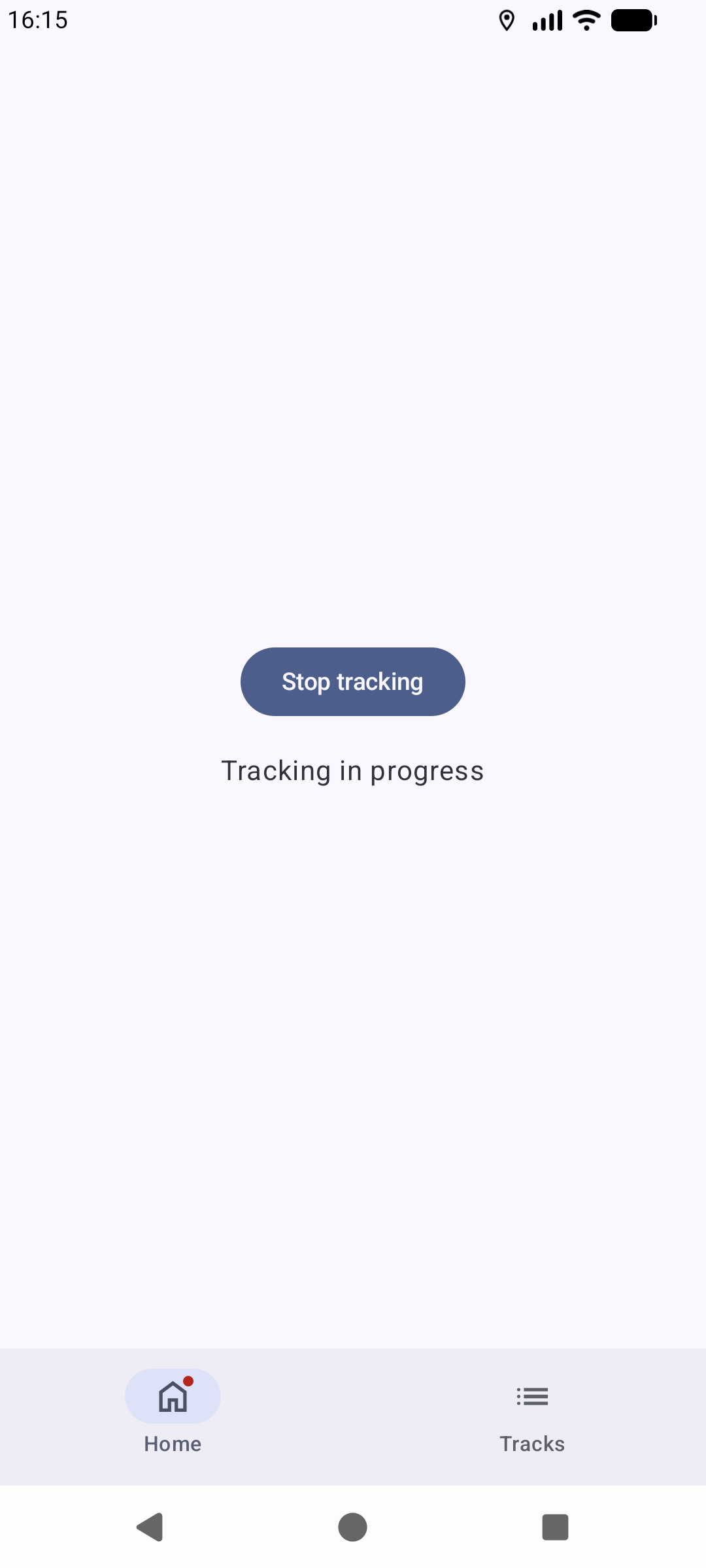
Press "start tracking" to start the tracking and "stop tracking" to stop it. The track will show in the track list after tracking is stopped.
Viewing Tracks
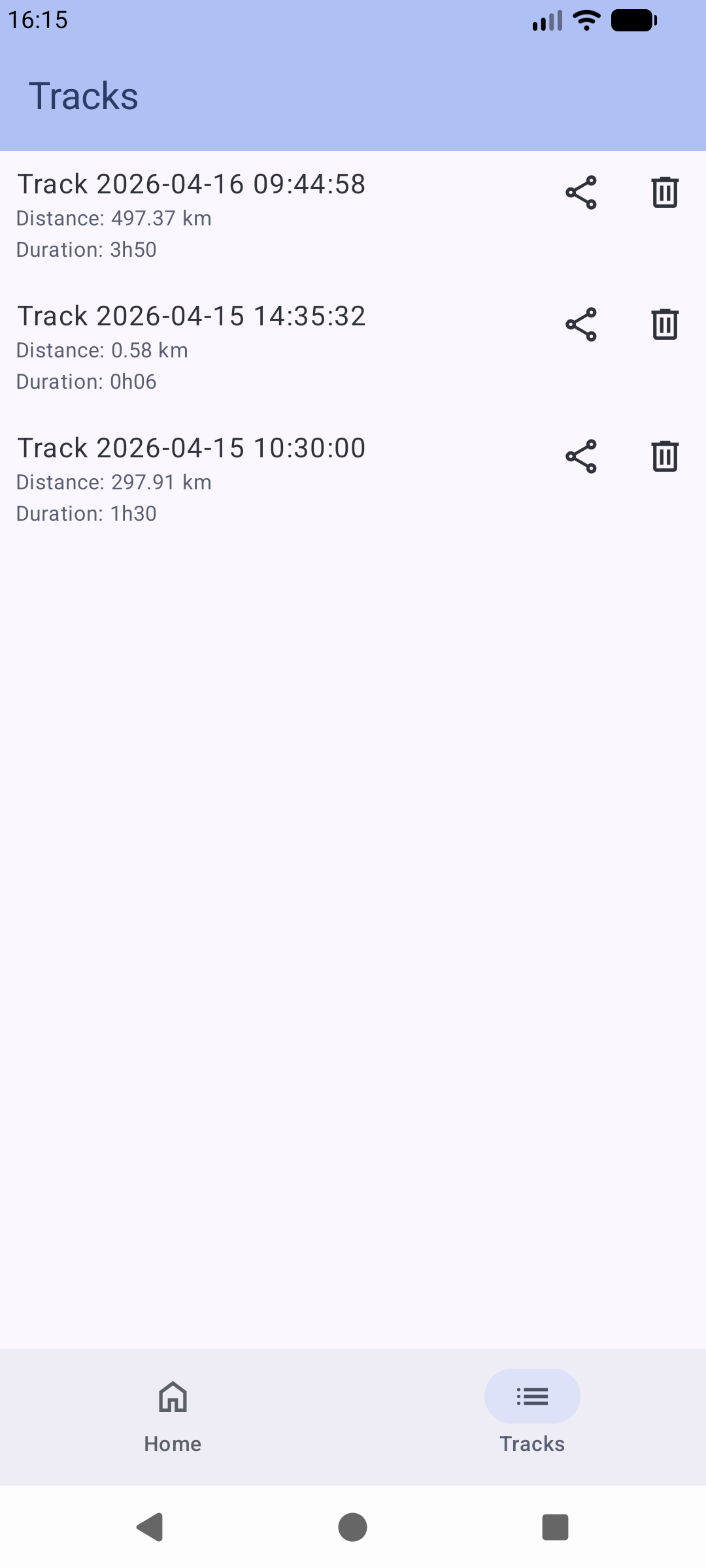
The tracks page lists the tracks registered by the app.
Features:
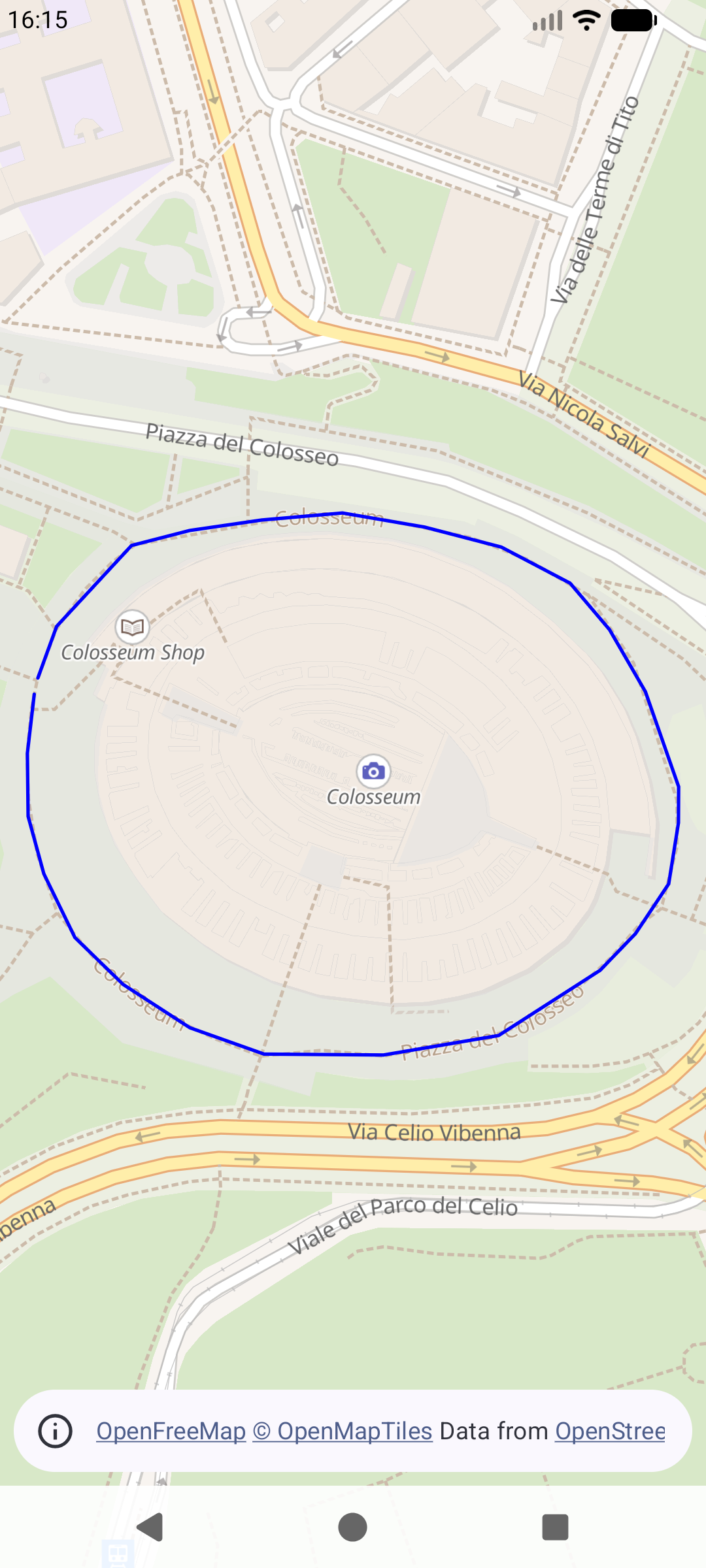
- View the track on a map by pressing on it
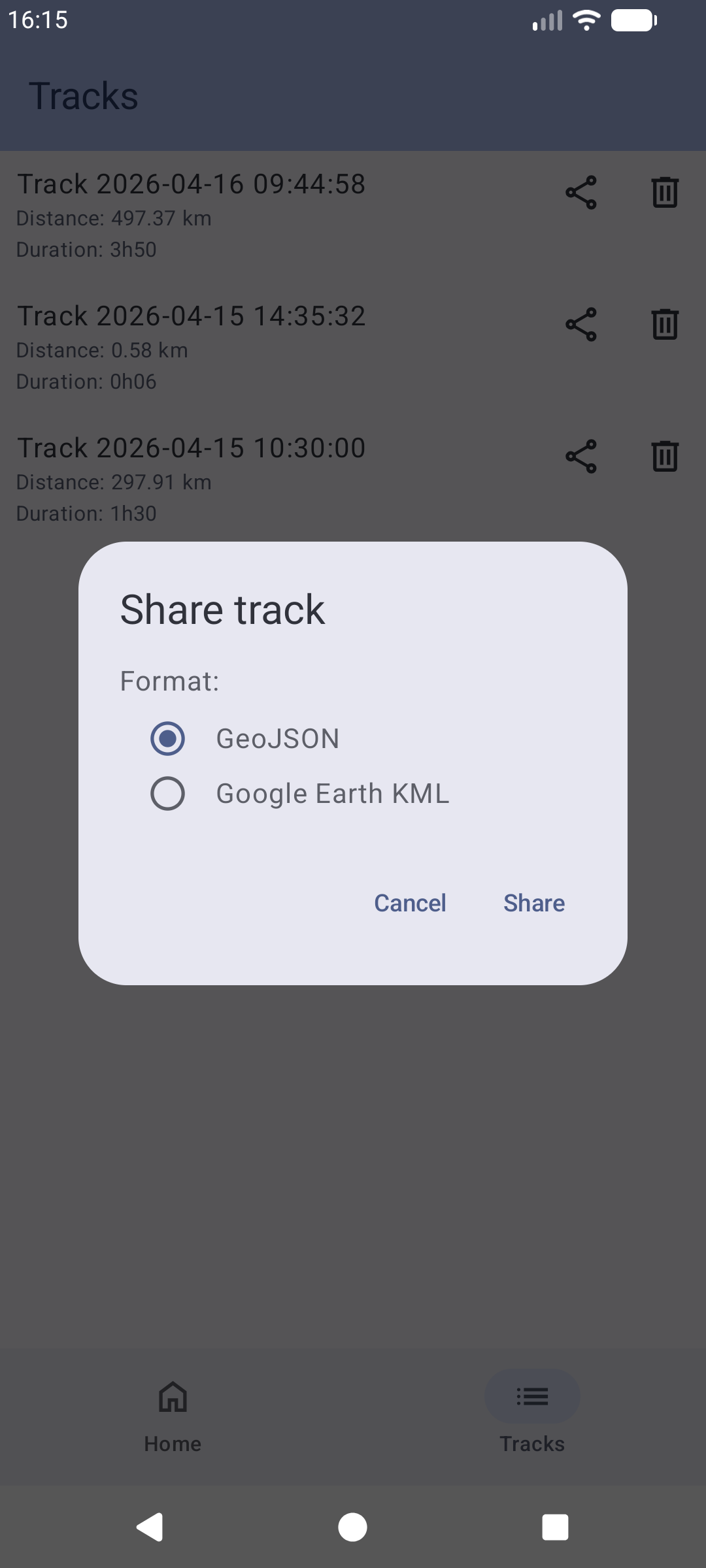
- Share the track by pressing the share icon

- GeoJSON: internal format, but also importable into Google Earth and other tools
- Google Earth KML: to import in Google Earth and other tools
- Delete the track by pressing the delete icon

Import Into Third-Party Tools
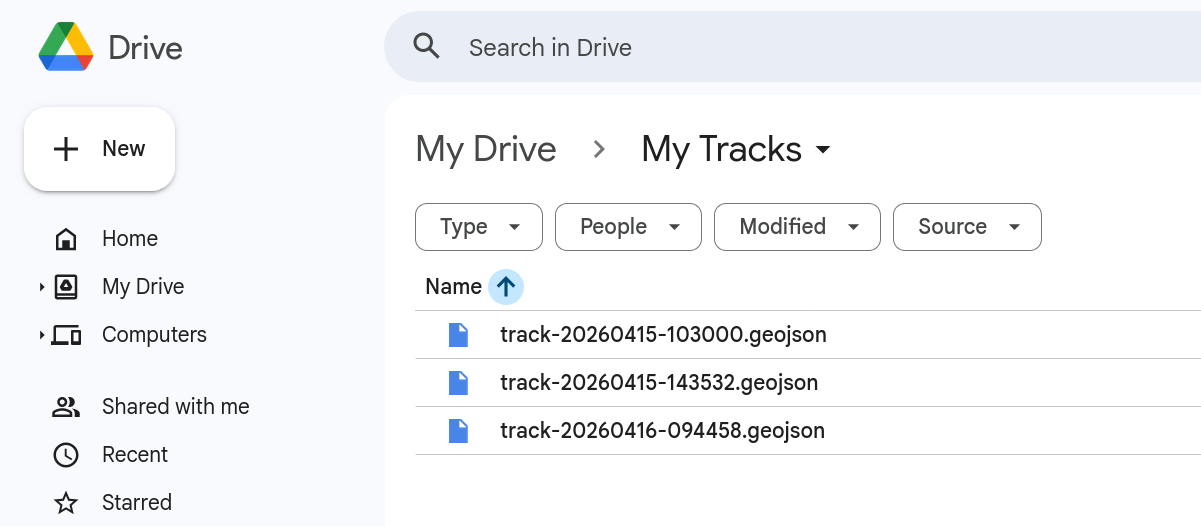
These instructions assume that the tracks were first exported to Google Drive
Google Drive example (click to show)
Google Earth (web)
Website: https://earth.google.com/web/
Steps to import into a Google Earth project (click to show; best viewed on a wide screen)
Press the + button to add a new layer.
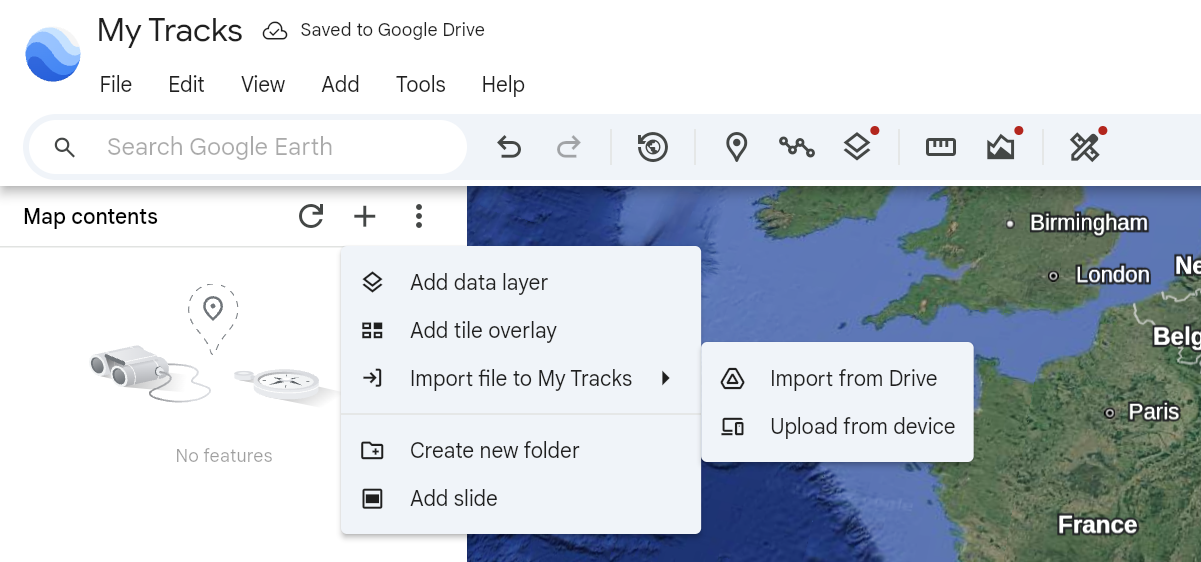
Select the file to import and then add it as a "data layer".
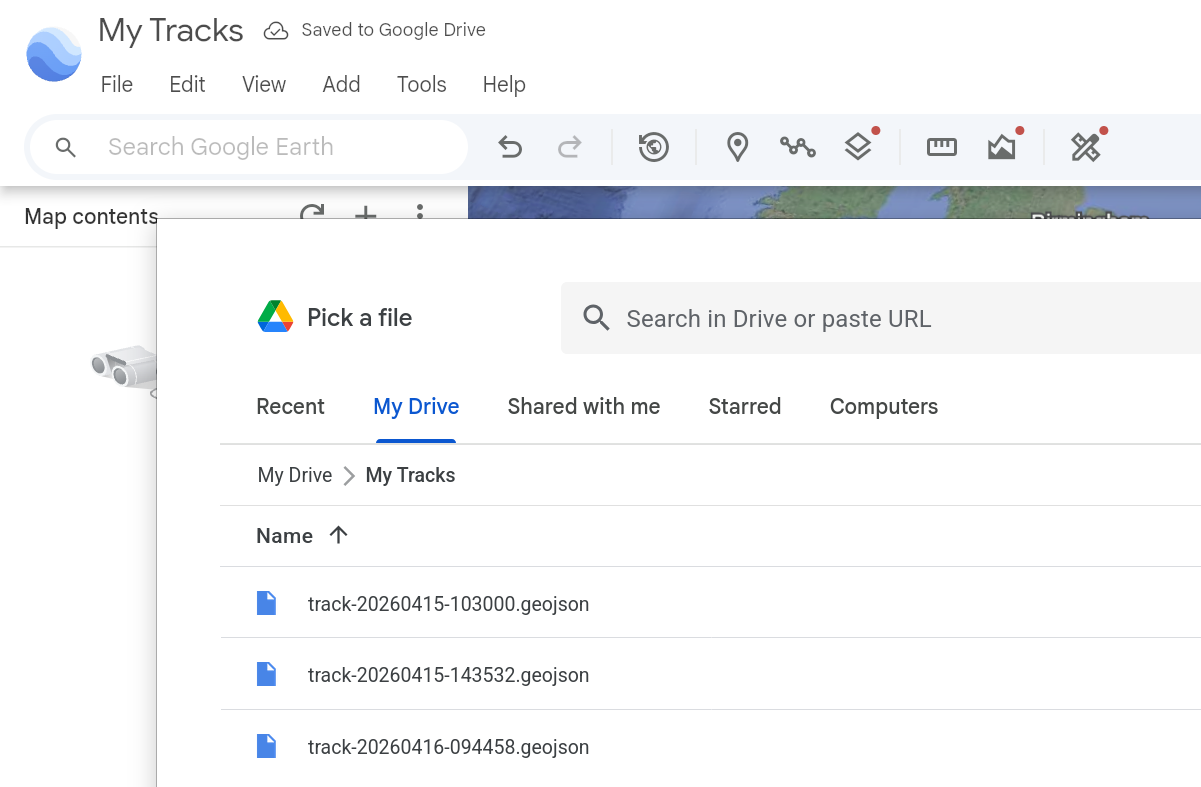
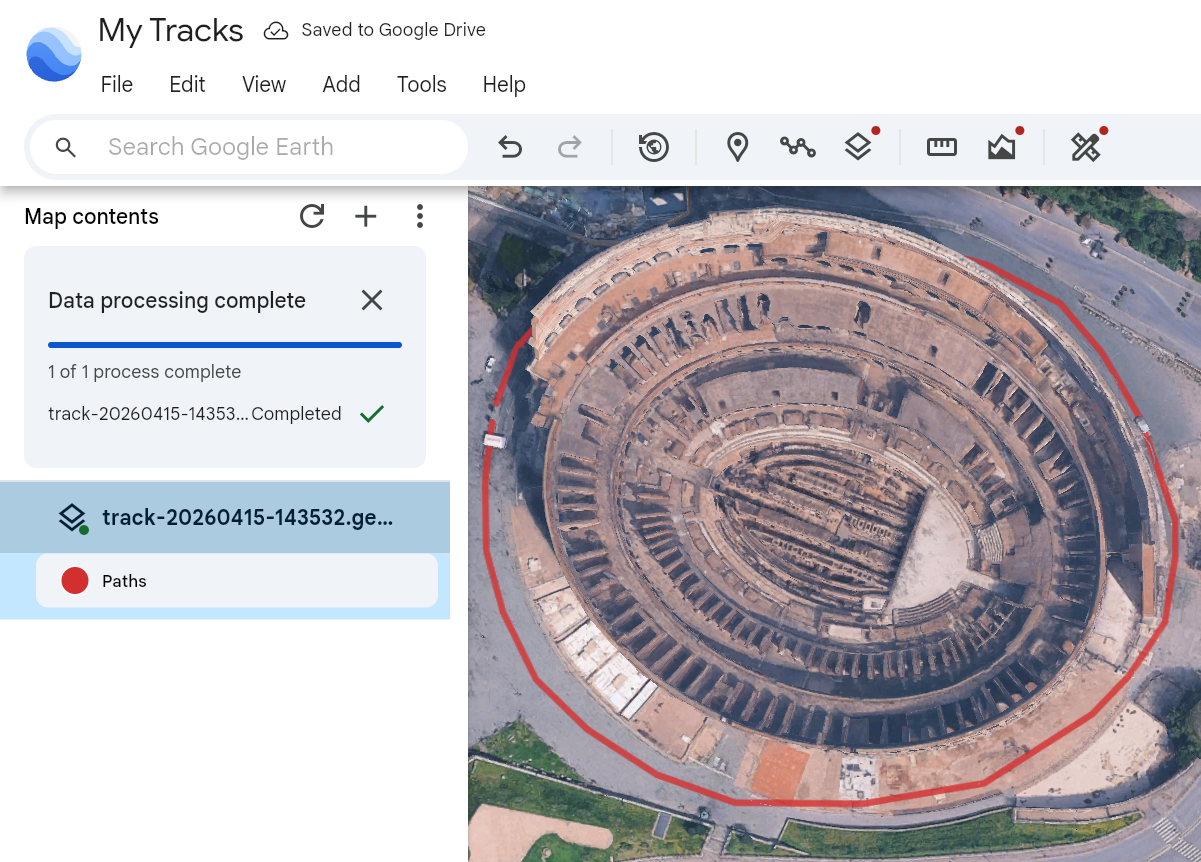
View the path and optionally edit its properties.
Google Earth (mobile)
Instructions to come...
Google Earth Pro (desktop)
Instructions to come...